Delegate (reassign) work items
The P2i Senior User, Payment Allocation Officer, Contract Manager, Contract Officer, Super User and Director have access to this delegate (reassign) feature.
These instructions enable the delegate (reassign) of work items to another user with the same role within the same department.
The work items are: Performance Based Acquittal (PBA), Financial Acquittal, Audited Financial Statement, Milestones, One-Off, Payment Recommendations, Indexation and Other Adjustments.
This is useful where the assigned user leaves a department or takes long term leave.
Warning A user must be set up with the same role before they can receive the delegated (reassigned) work items.
When a user is not returning to the Department or will be absent for a long time, the Department is required to change the User Assignments on all contracts the user was assigned to. Refer to Update a contract's Assignment Details. This ensures all future work items are sent to the correct user.
To delegate (reassign) a work item:
-
From the P2i Downstream Dashboard, click
 Procurement Delegation Service.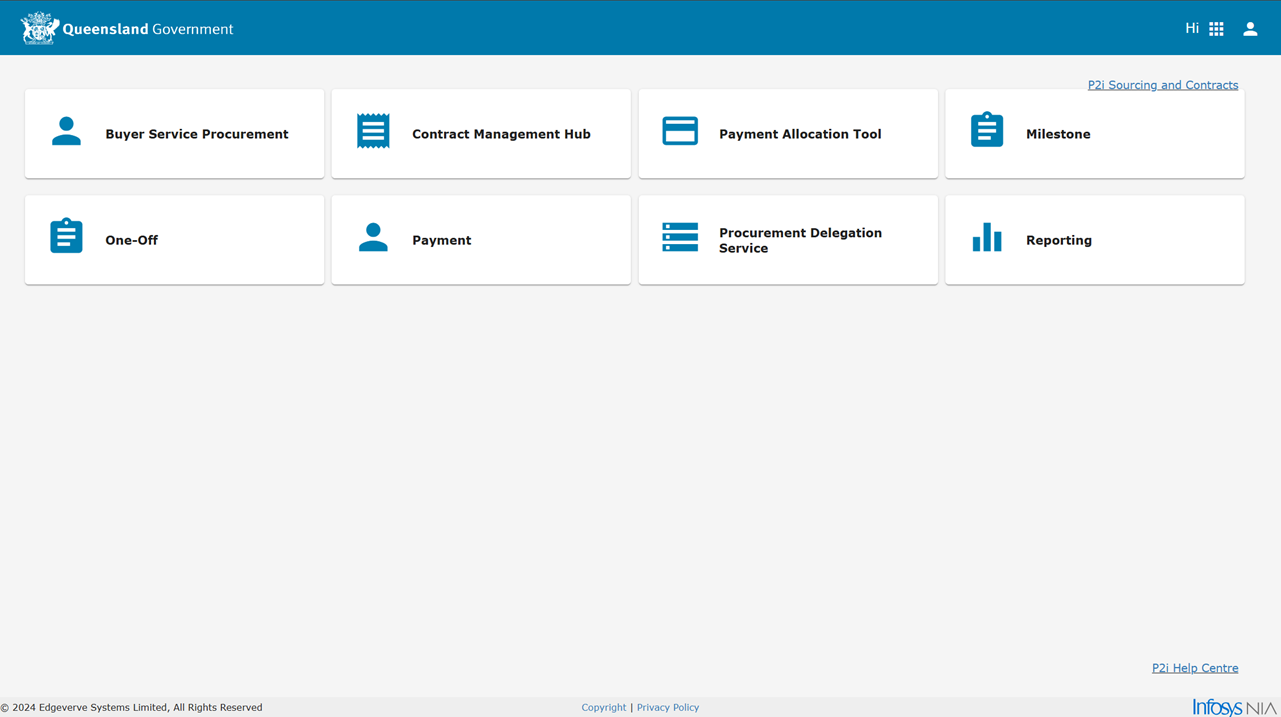
-
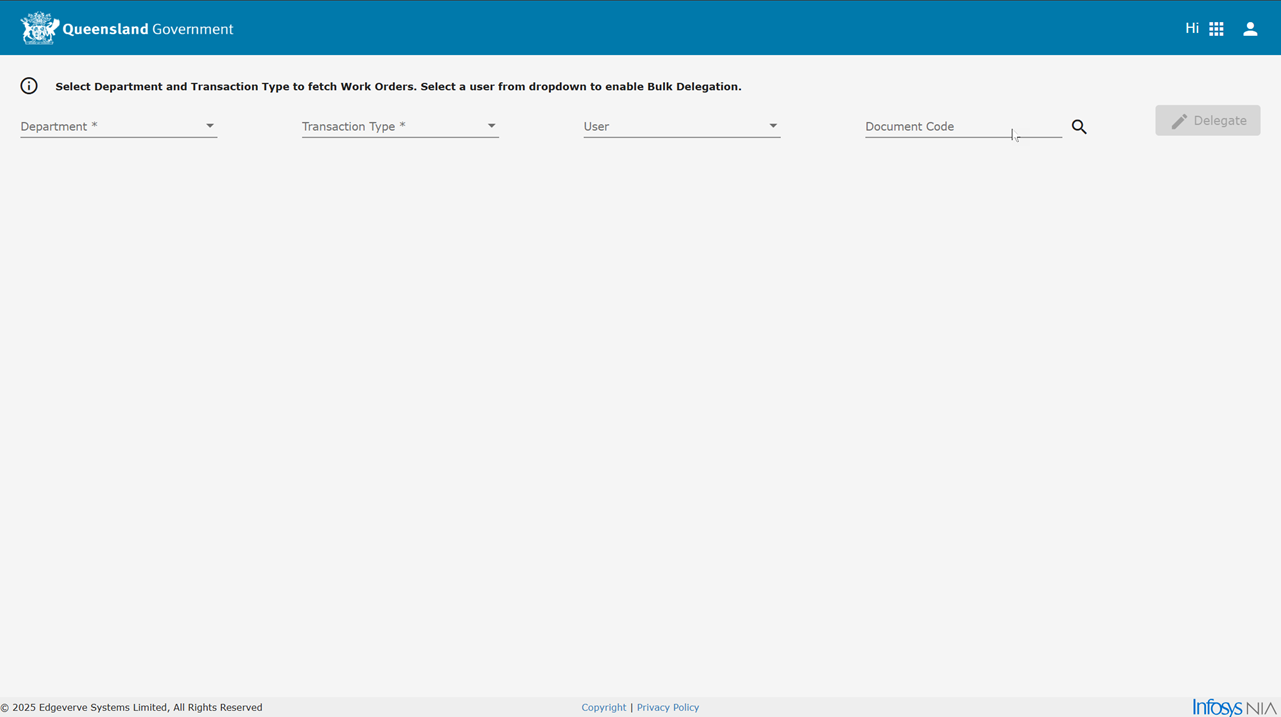
Select a Department from the dropdown list.
-
Select a Transaction Type from the dropdown list.
Transaction Type are the work item types: Payment Recommendation, Performance Based Acquittal, One-Off, Milestone, Indexation, Annual Financial Statement, Financial Acquittal, Other Adjustments.
-
Select the User from the dropdown list.
Note The user selected is the one that is no longer available to complete the work item.
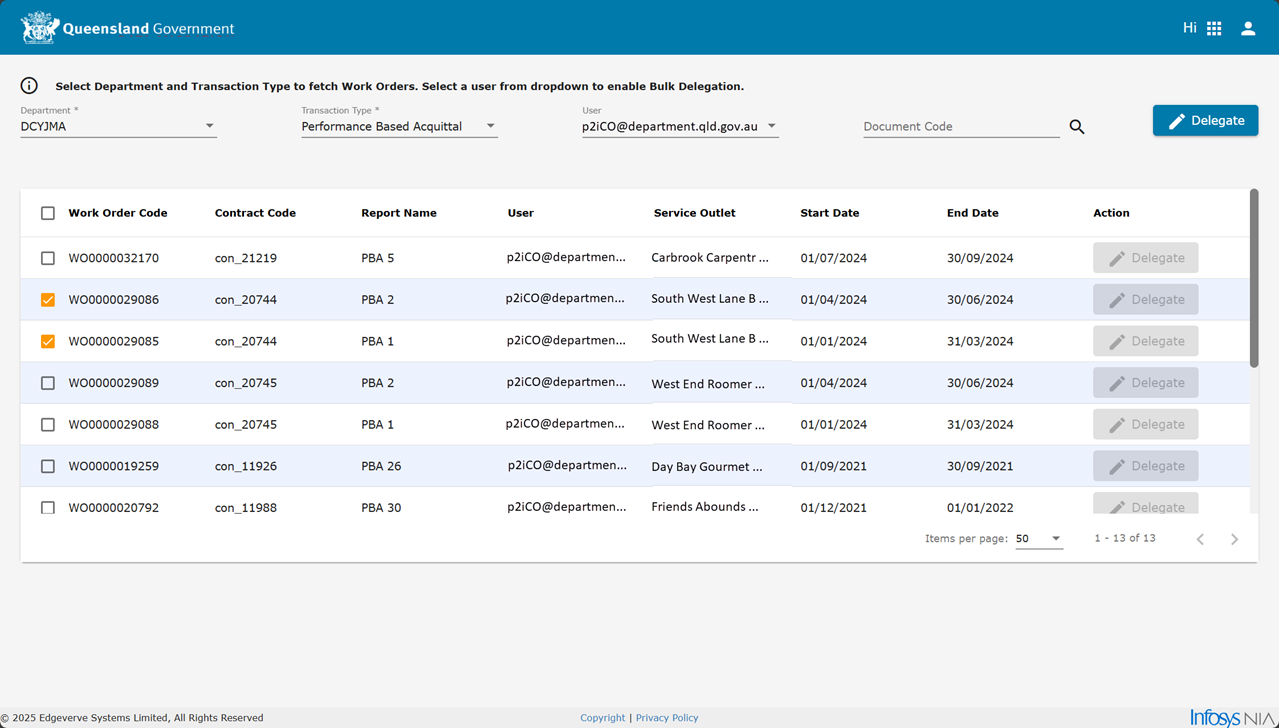
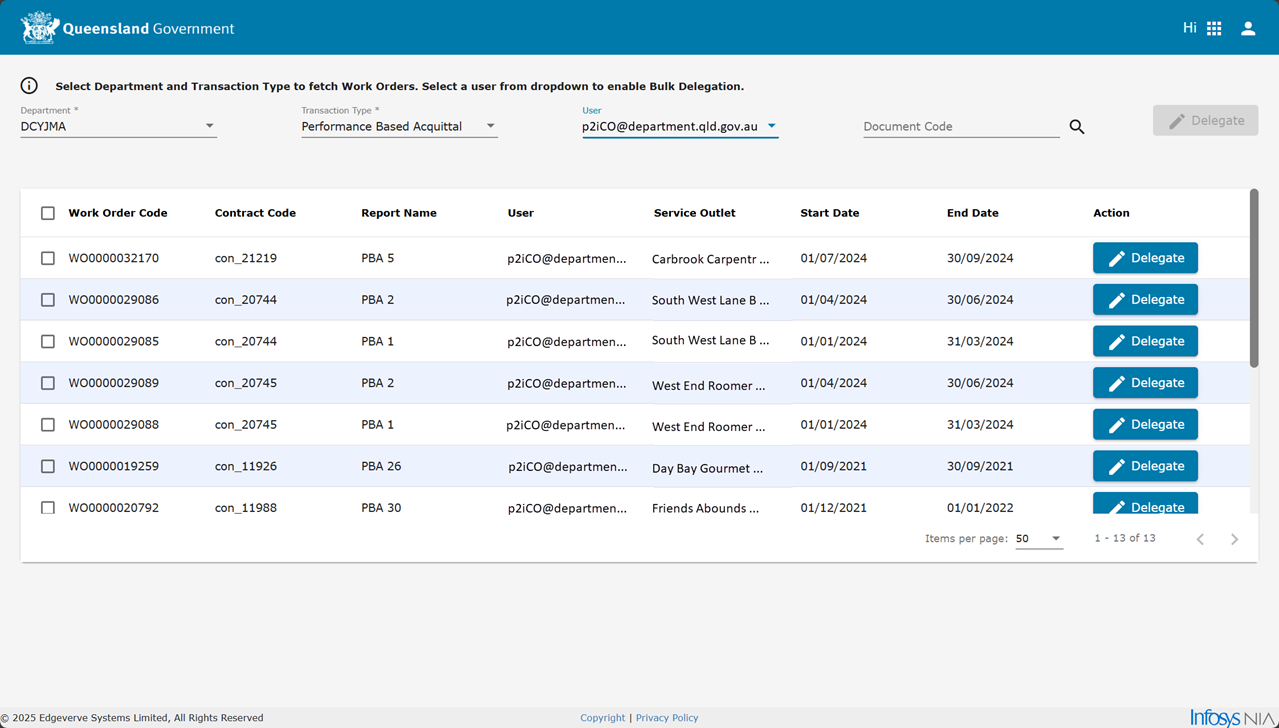
Pending work items assigned to the User are listed.
-
Click Delegate next to the work item you want to delegate (reassign) to another user.
Tip Tick multiple work items and click Delegate to reassign more than one work item to another user.
-
Select the Approver from the dropdown.
(this is the user work item/s are being delegated/reassigned to)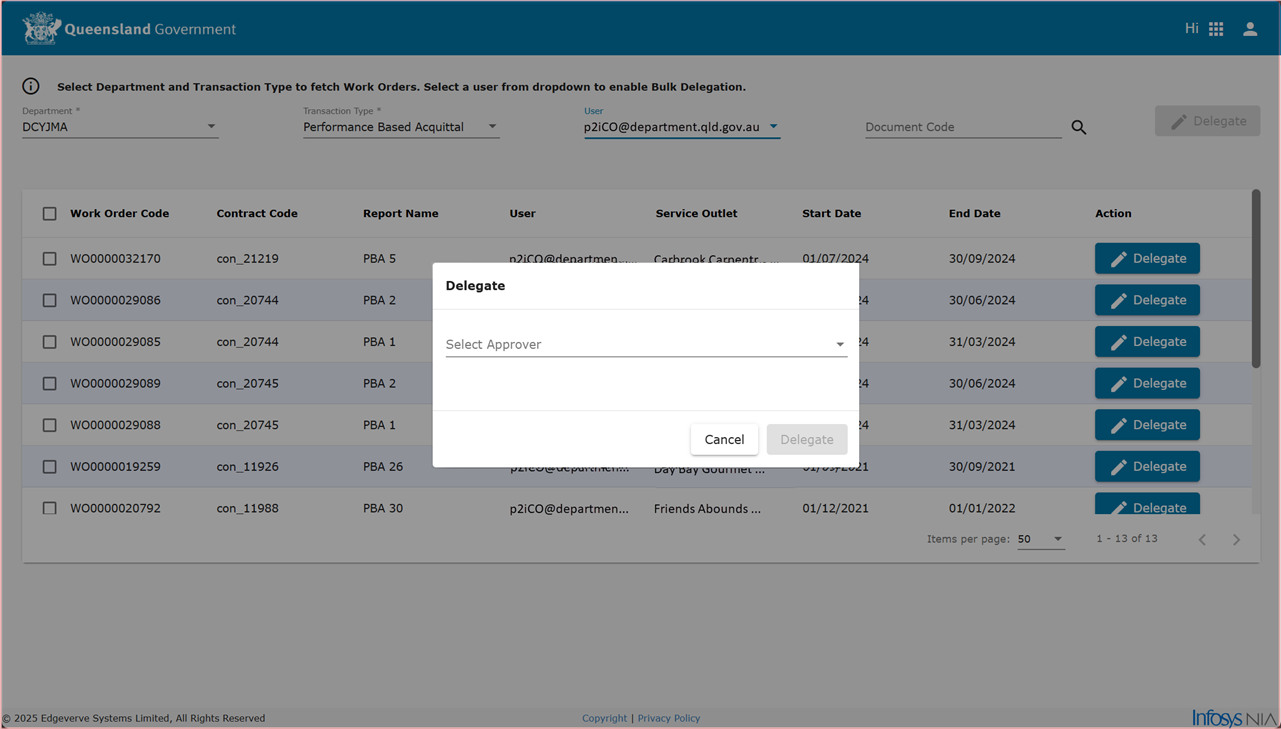
-
Click Delegate
The following notification will display at the bottom of the screen:
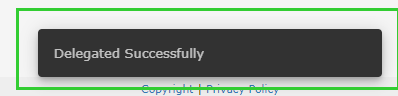
Verify the work item has delegated (reassigned) successfully.
Note Once the work item is delegated (reassigned) it appears only to the Delegated (reassigned) User. The work item's workflow will still remain the same and the Delegated (reassigned) user will be able to work on it.